Use your voice
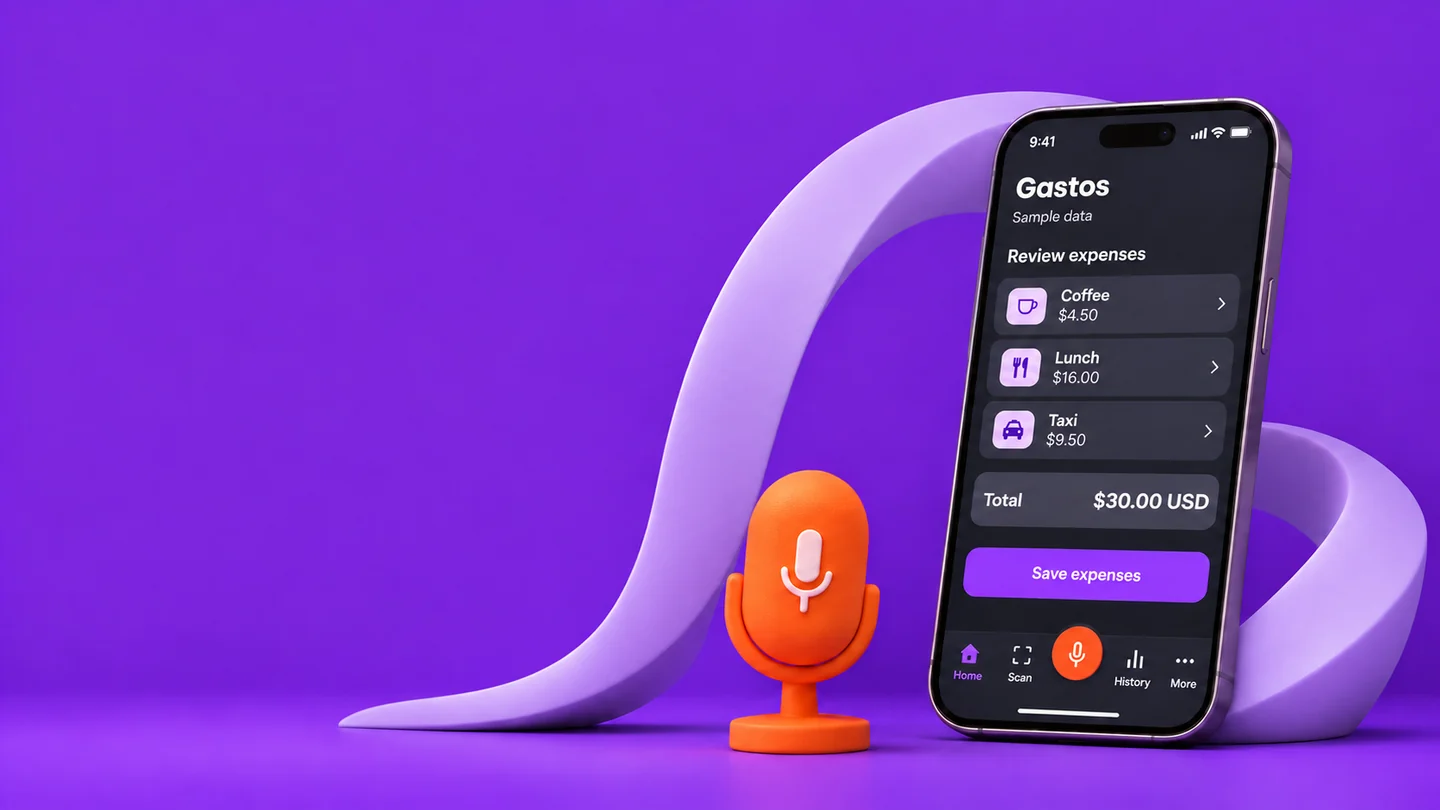
Hold the microphone, describe one expense or several, then release. Review descriptions, amounts and categories before saving.
The expense stays.The weight lifts.
Track expenses with your voice. Review them before you save.
We’ll let you know when Gastos is available.
By joining, I request the Gastos launch announcement. I can cancel by writing to gastos@tynkr.co. Waitlist privacy
Illustrative preview · Sample data
Share expenses with your family, on a trip or for a project. Keep everything together.
Keep household expenses visible to the group.
Keep what you spend together in one place.
Every shared expense keeps its author.
Choose how to log it. You always have the final say before saving.
Hold the microphone, describe one expense or several, then release. Review descriptions, amounts and categories before saving.
Photograph a receipt or choose an image. Review the suggested expense before you save it.
Type a description and an amount. Manual expense entry also works offline.
“Coffee four fifty, lunch sixteen dollars, and a taxi nine fifty.”
Say it. Review it. Save it.
Logging is just the start. Find your expenses and give your month a direction.
We’re preparing for launch. The waitlist will let us tell you when it’s available. We haven’t announced a launch date or pricing.
No. You can also enter an expense manually or use a receipt photo. Voice is optional, and you can always review the result before you save.
No. You decide what to log. Gastos can work with Apple Pay through an automation you configure in Shortcuts on your iPhone. This doesn’t capture every purchase or give access to all your bank accounts.
Group members can see shared expenses and who added them. Each person manages their own expenses. Choosing a group doesn’t transfer money or settle debts.
Gastos has English and Spanish interfaces. You can switch this page’s language using the ES / EN selector.
Leave your email to hear when Gastos arrives.
Go to the waitlist